Want this as a document?
Download the Asset Owner Guide to print or share.

Simple Asset Tracker
Asset Owner Guide
For staff who print and affix asset labels
Version 1.2.5 · 09 October 2026
About this guide
Your job is to get a printed label onto every asset assigned to you. Each label carries a QR code, which is what verifiers scan later, along with the asset name, category and tag number, so anyone can read it without scanning.
Screenshots are marked with numbered red badges. Each badge matches a numbered step in the text below the picture.
Signing in
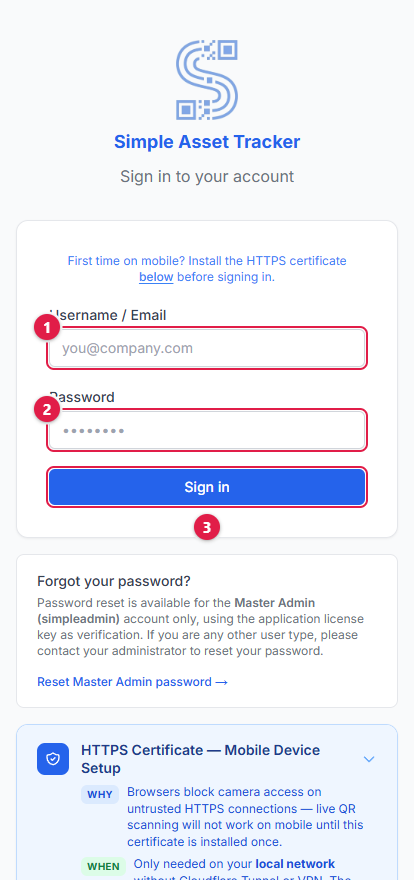
- 1.Type the username your administrator gave you.
- 2.Type your password.
- 3.Click Sign In.
Your administrator will also give you the web address to use. The application knows your role from your account and takes you straight to the right place.
Your assets
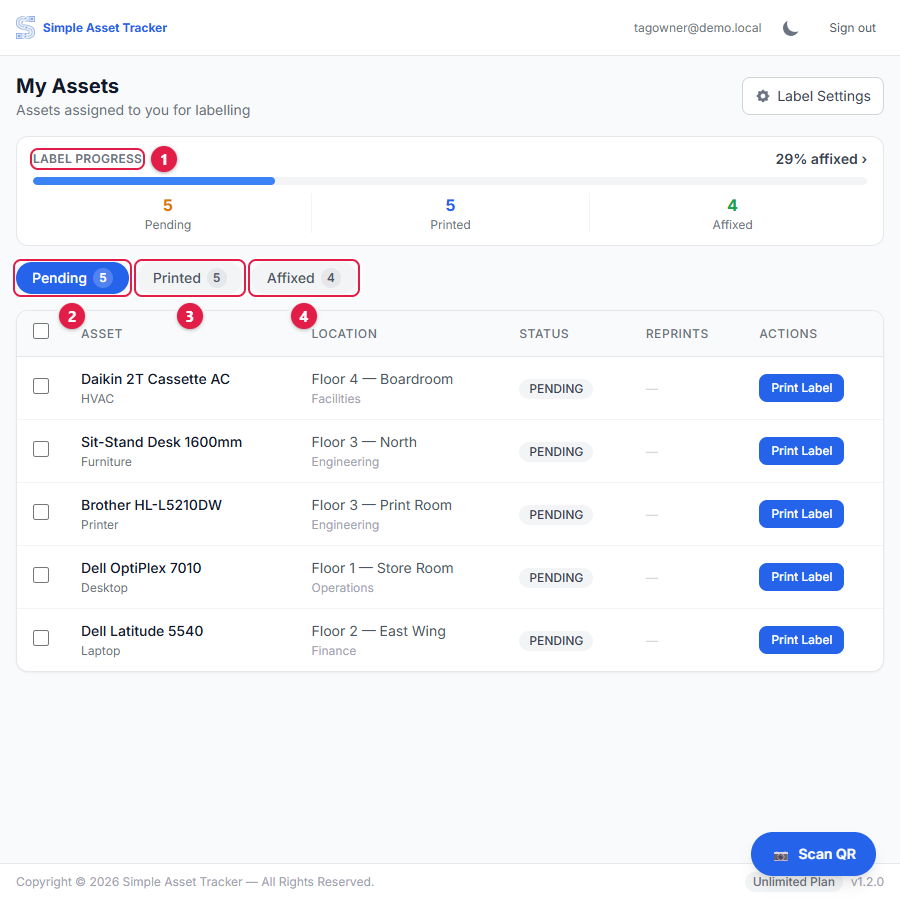
- 1.Label Progress shows how much of your list is done.
- 2.Pending — no label printed yet.
- 3.Printed — label printed, not yet confirmed as stuck on.
- 4.Affixed — finished.
Tap a tab to switch between the three groups.
Printing a label
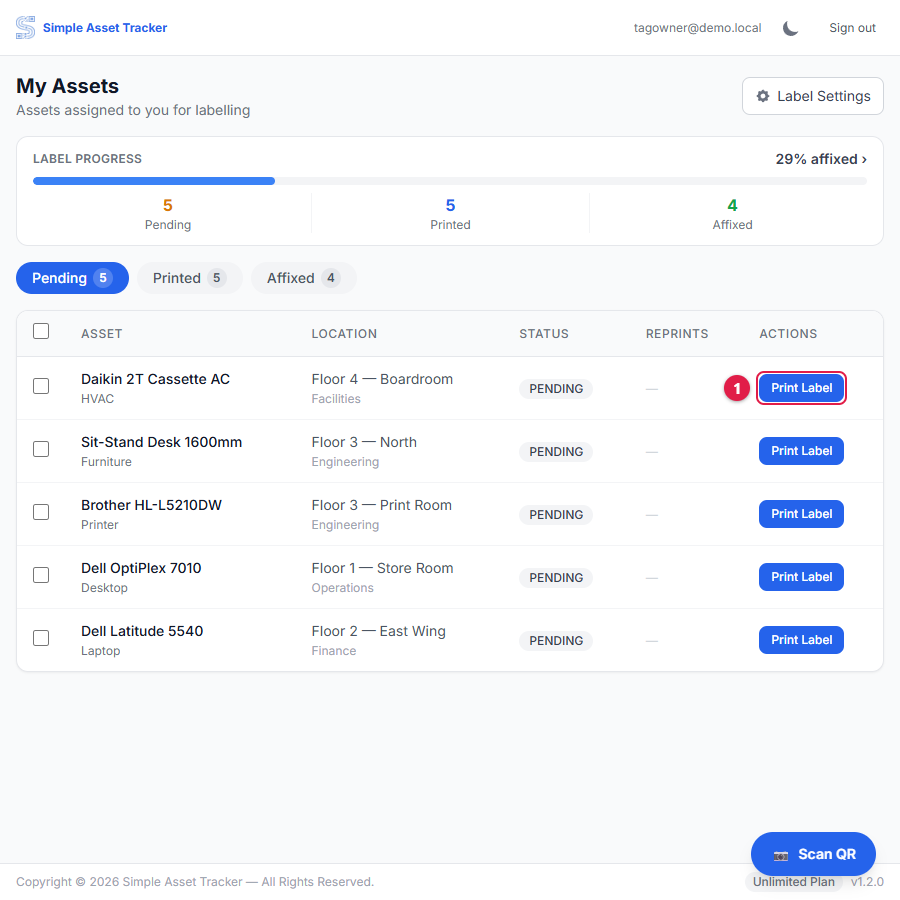
- 1.On the Pending tab, tap Print Label. A print window opens with the label ready. Print it, and the asset moves to Printed.
Confirming the label is on
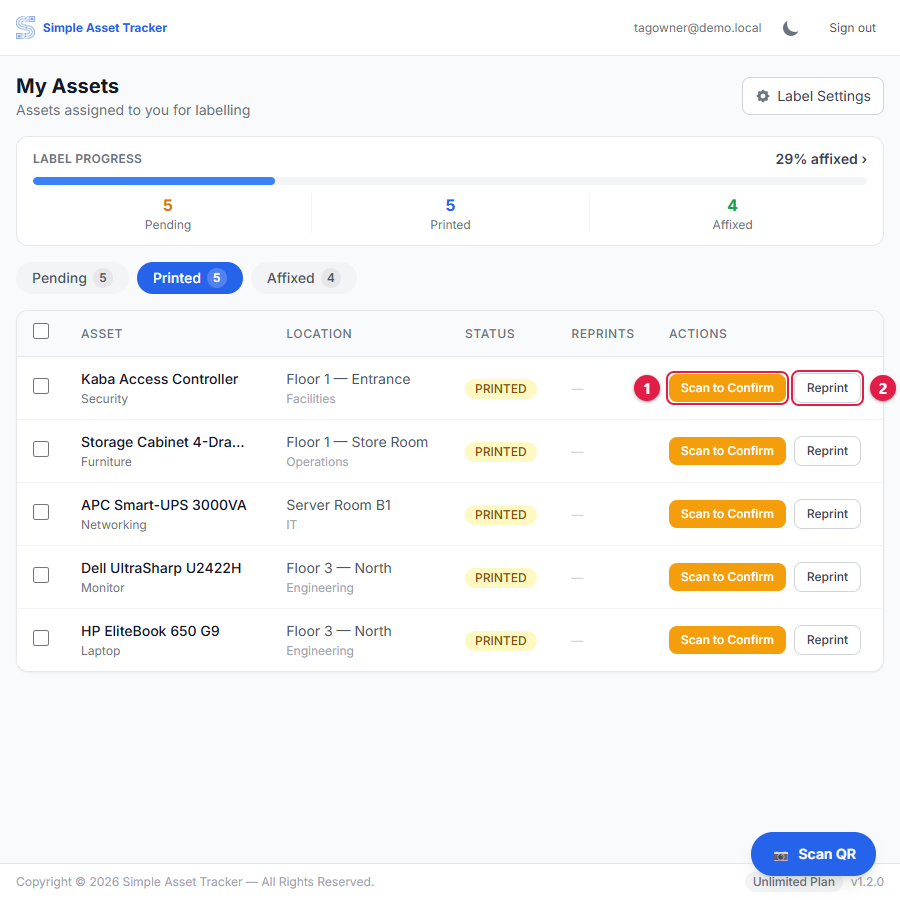
- 1.Stick the label on, then tap Scan to Confirm and scan the label you have just stuck down. This proves the right label went on the right asset, and moves it to Affixed.
- 2.Reprint prints the label again — for when one is damaged, lost or misprinted. Reprints are counted, so heavy reprinting is visible to your administrator.
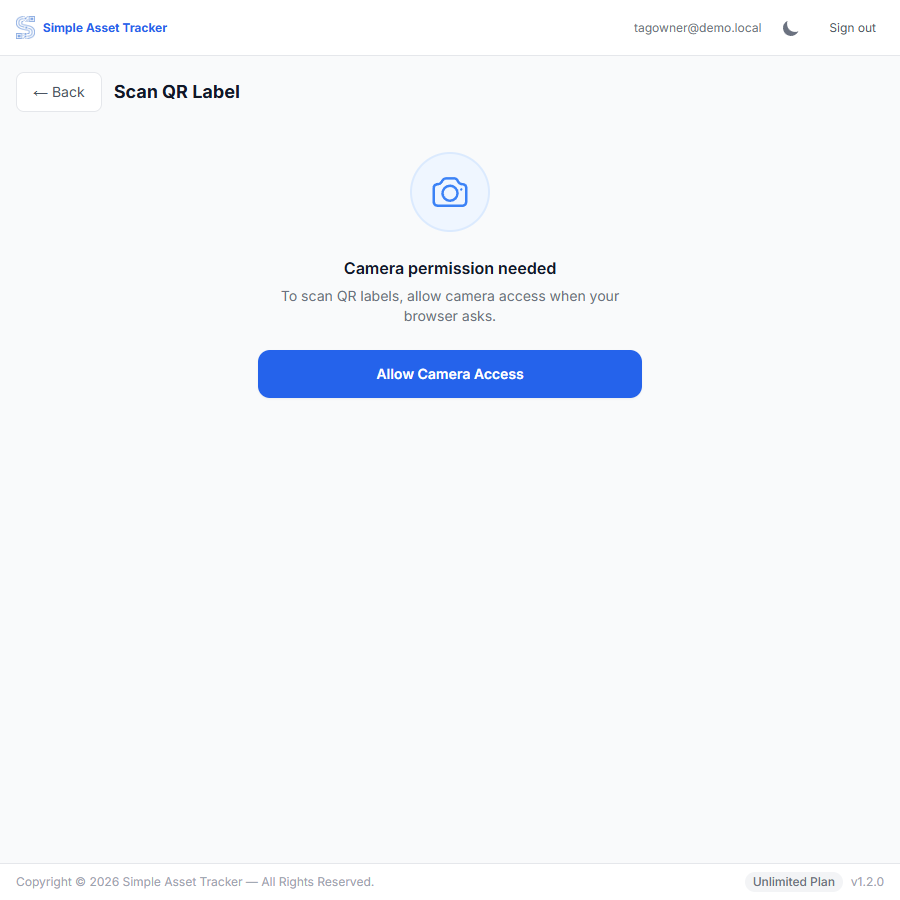
Hold the phone steady with the QR code inside the frame.
Your progress
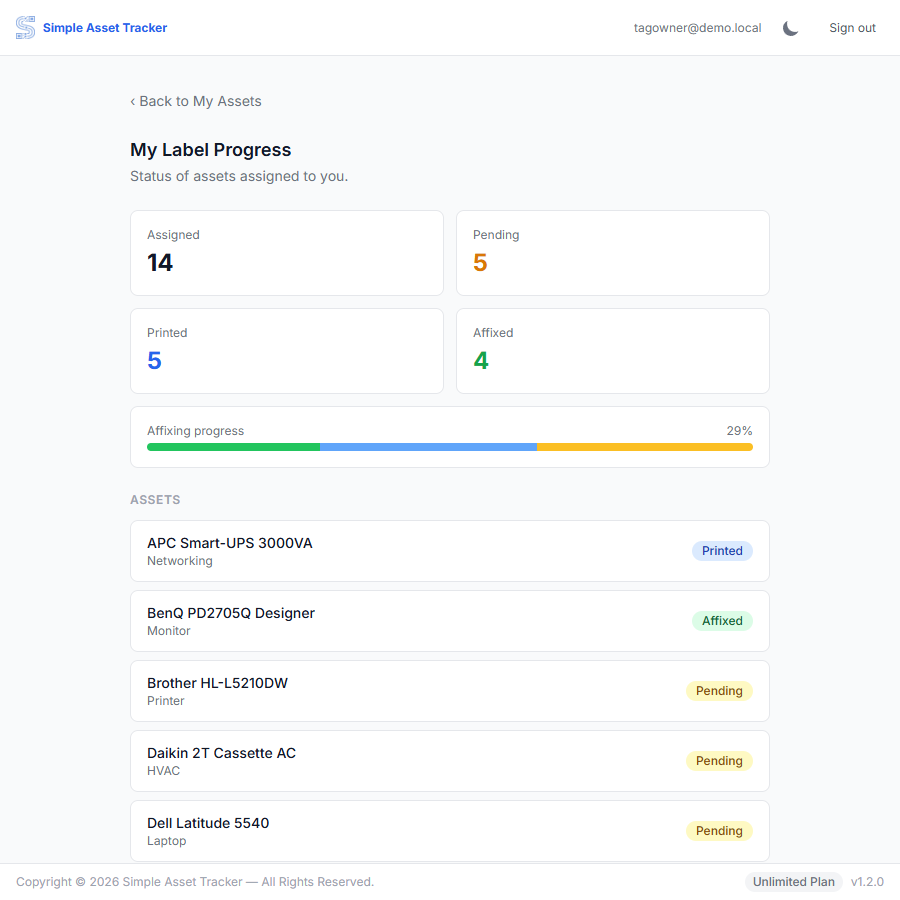
Tap the Label Progress card at the top of your list to see this. It is a read-only summary — Assigned, Pending, Printed and Affixed totals, an overall affixing progress bar, and each of your assets with its current label status and how many times it has been reprinted. There is nothing to action here; go back to your list to keep printing and confirming labels.
Appendix A — Words used in this guide
| Term | What it means |
|---|---|
| Asset | A single piece of equipment the organisation owns. |
| Asset tag | The printed label with a QR code that is stuck onto an asset. |
| Pending / Printed / Affixed | The three stages of getting a label onto an asset. |
Appendix B — If something goes wrong
| Problem | What to do |
|---|---|
| My list is empty | Nothing has been assigned to you yet. Ask your administrator. |
| The camera will not open | Allow camera access when the phone asks. If it still will not start, the connection may not be secure — tell your administrator. |
| It says I am offline | Carry on working. Your results are saved on the device and sent automatically when you are back on the network. |
| I cannot sign in | Check the username, and remember that repeated failures pause sign-in for a few minutes. Ask your administrator to reset your password if you are stuck. |