Want this as a document?
Download the Asset Tracker Guide to print or share.

Simple Asset Tracker
Asset Tracker Guide
For staff who hand out equipment and take it back
Version 1.2.5 · 09 October 2026
About this guide
Your job is to record who is holding what. When someone takes a laptop, you issue it to them; when it comes back, you recover it. The register then always shows where things are.
Screenshots are marked with numbered red badges. Each badge matches a numbered step in the text below the picture.
Signing in
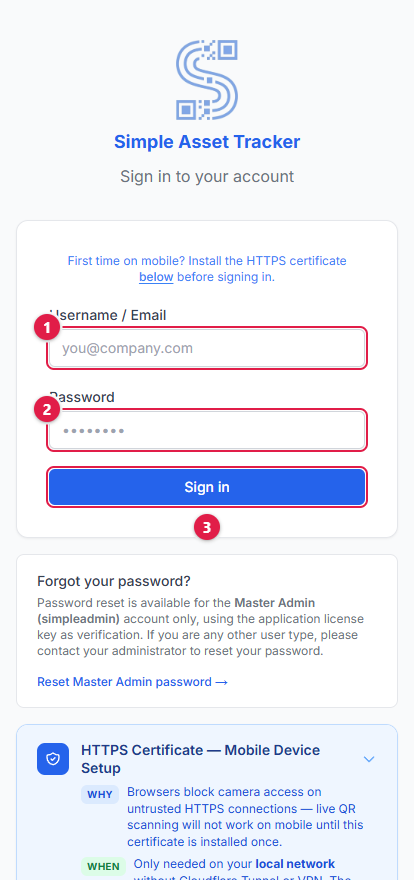
- 1.Type the username your administrator gave you.
- 2.Type your password.
- 3.Click Sign In.
Your administrator will also give you the web address to use. The application knows your role from your account and takes you straight to the right place.
The four views
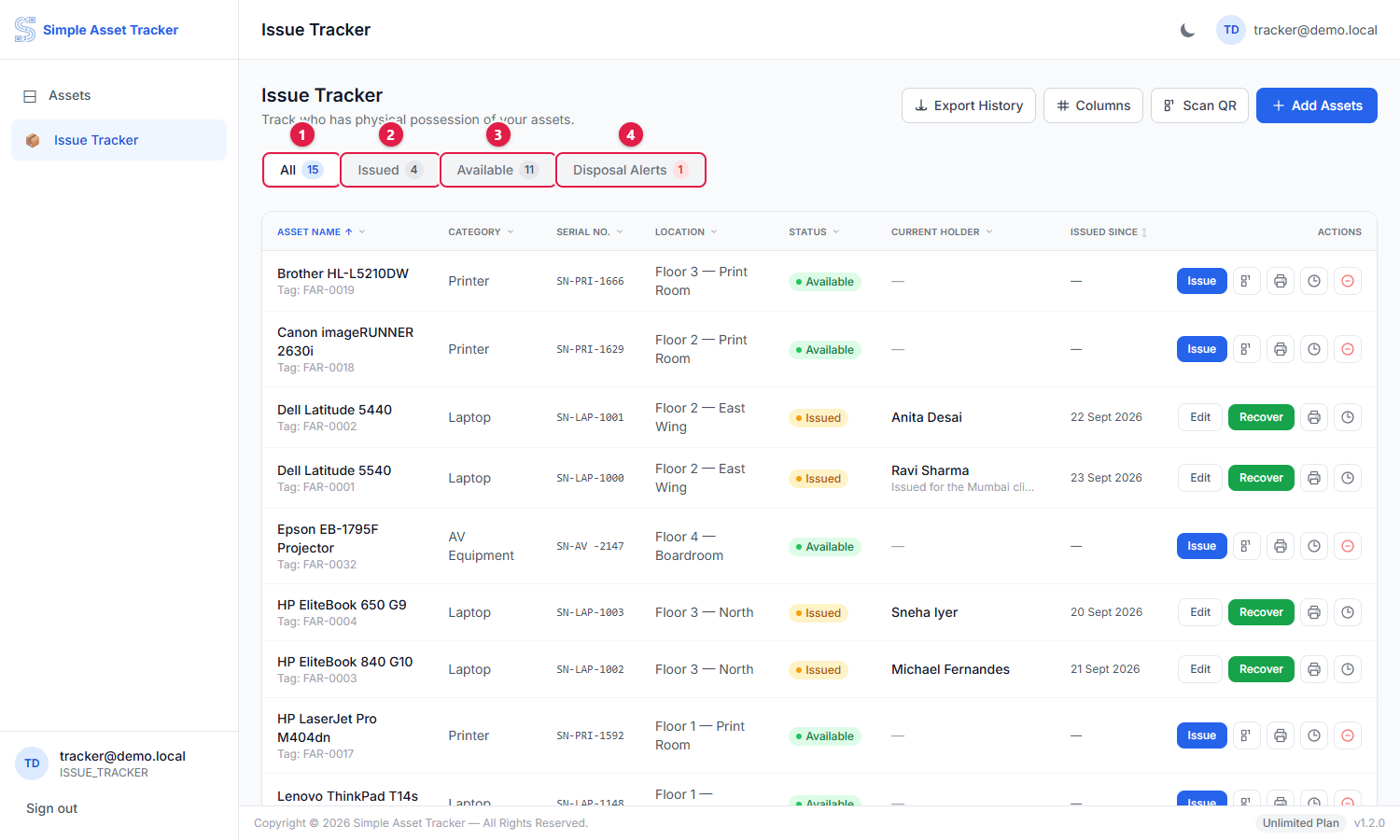
- 1.All — every asset being tracked.
- 2.Issued — assets out with someone right now.
- 3.Available — tracked assets sitting on the shelf.
- 4.Disposal Alerts — assets the finance system has written off while somebody still has them. These need sorting out.
The number beside each tab is how many assets are in it. Only assets that have been enrolled in the tracker appear here — enrolling is how you add one.
Issuing an asset
From the Available list, choose the asset and record who is taking it.
- Holder name is always required.
- Your administrator may also make employee ID, employee email or serial number compulsory. If a box is marked with an asterisk you have to fill it in.
- You can scan the asset's QR label instead of finding it in the list.
- Notes are for anything worth remembering — which project it is for, when it is due back.
Day-to-day actions
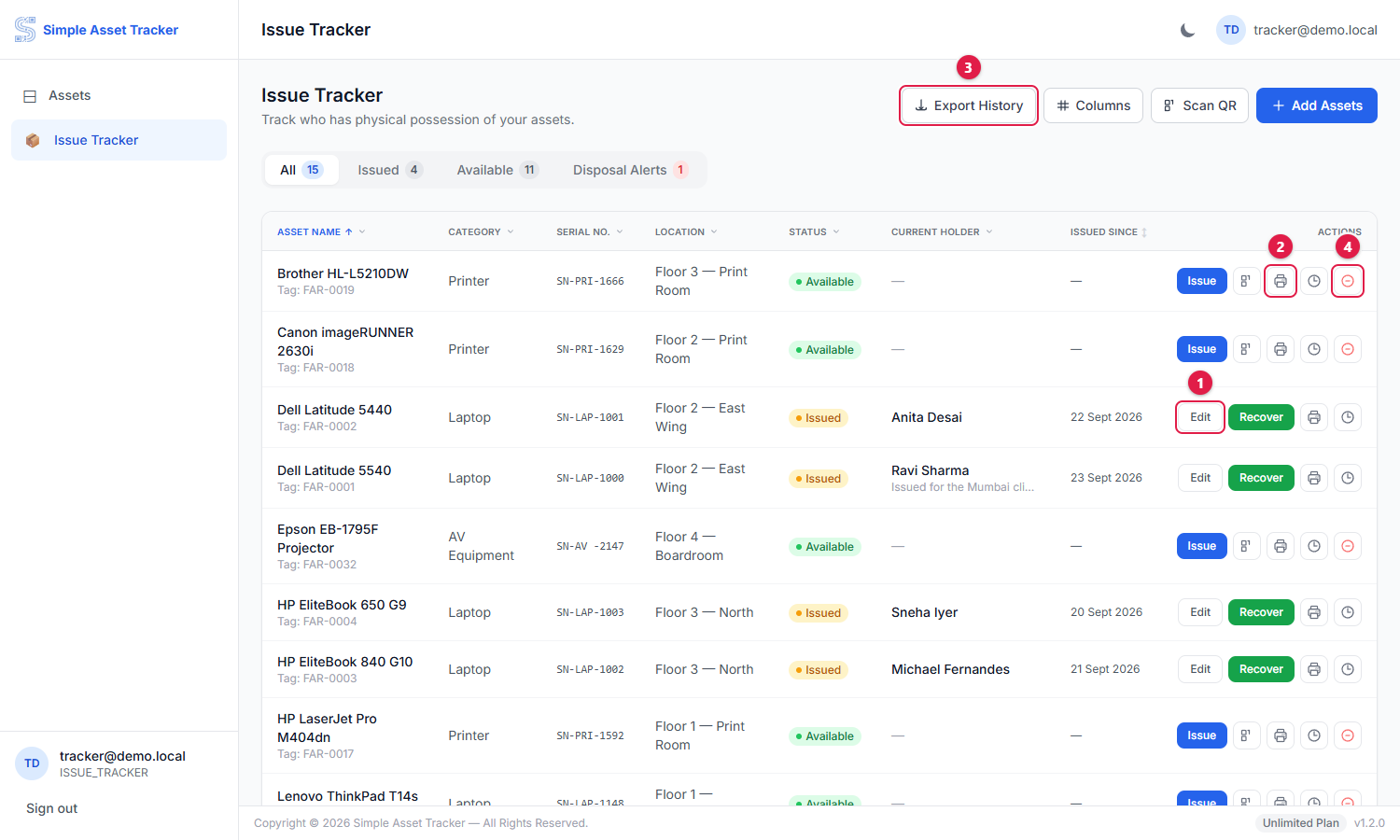
- 1.Edit — correct the details on an open issue, such as a mistyped serial number.
- 2.Print — print the asset's label.
- 3.History — every issue and return for this asset.
- 4.Remove — take the asset out of the tracker. Its history is kept.
Taking an asset back
When equipment comes back, recover it. Record the date it came back and add a note about its condition. The asset returns to the Available list and the issue is closed.
History
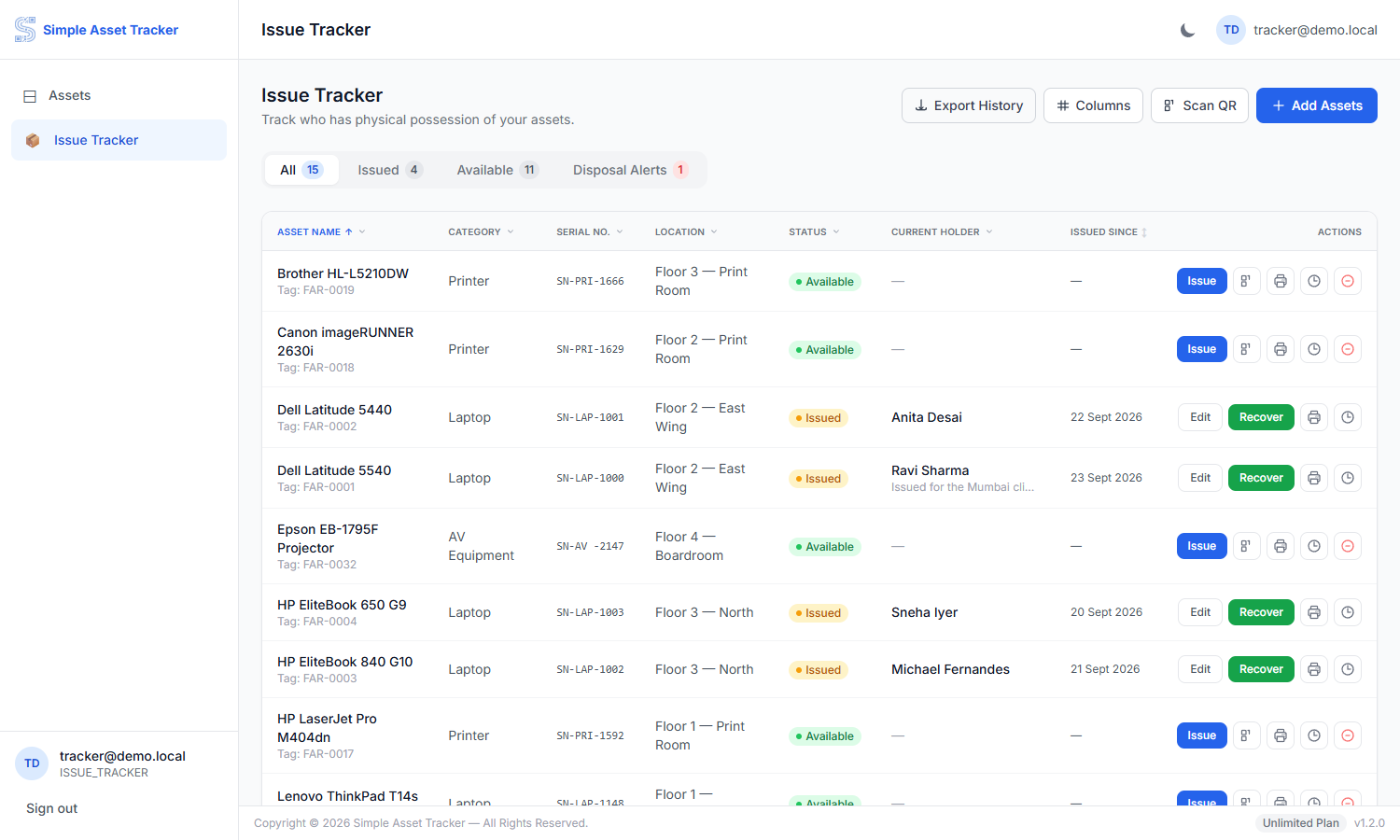
History shows every person who has held this asset, when they took it, when they brought it back, and any notes recorded along the way. This is what you check when somebody asks who had a laptop last March.
Disposal alerts
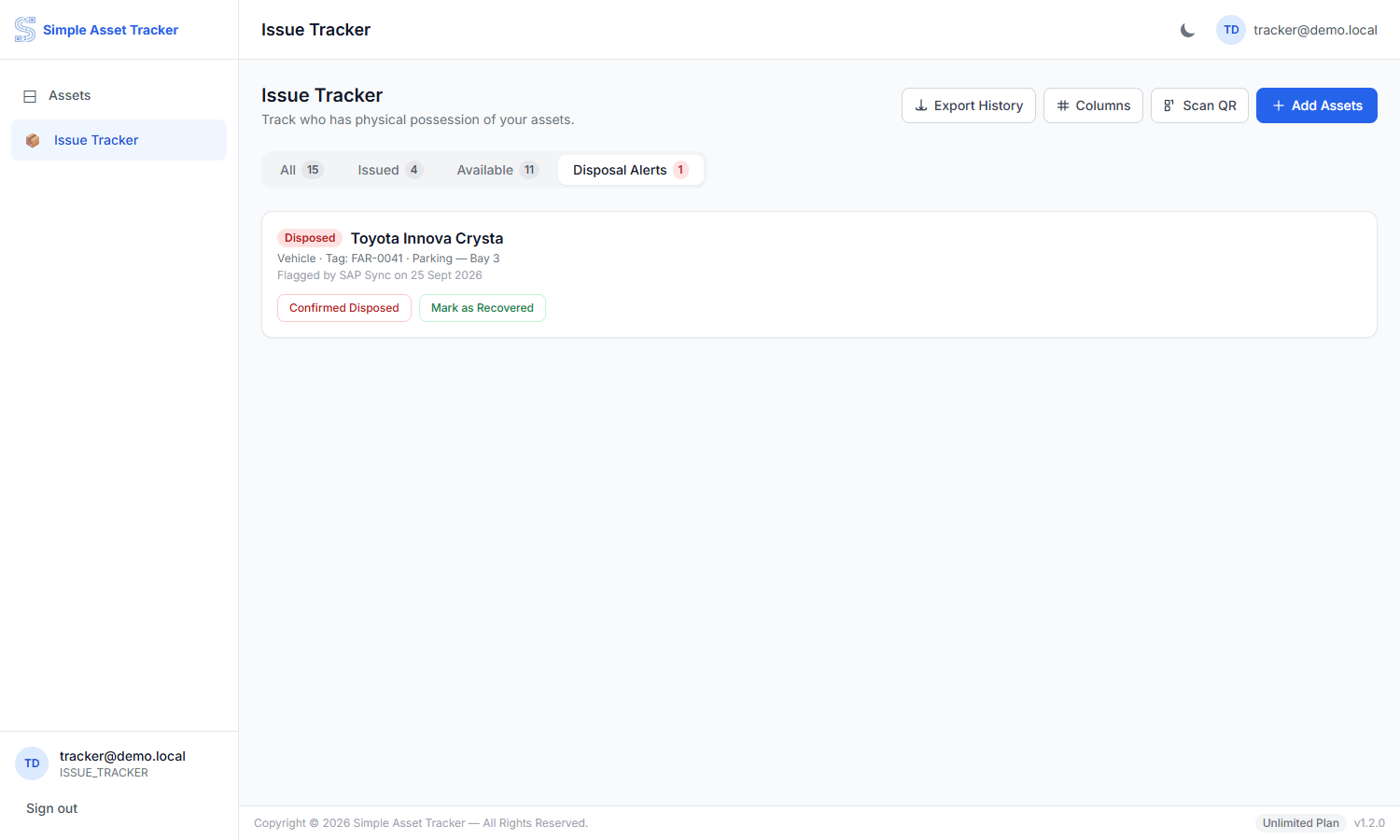
An alert appears when the finance system marks an asset as disposed, sold or written off while your records still show somebody holding it. Something is out of step, and it needs a decision:
- Confirmed disposed — the asset really has gone. Record it and close the alert.
- Recovered — the asset is still around and finance is wrong. Record that instead.
Add a note explaining what you found; whoever reviews this later will need it.
Assets ready to issue
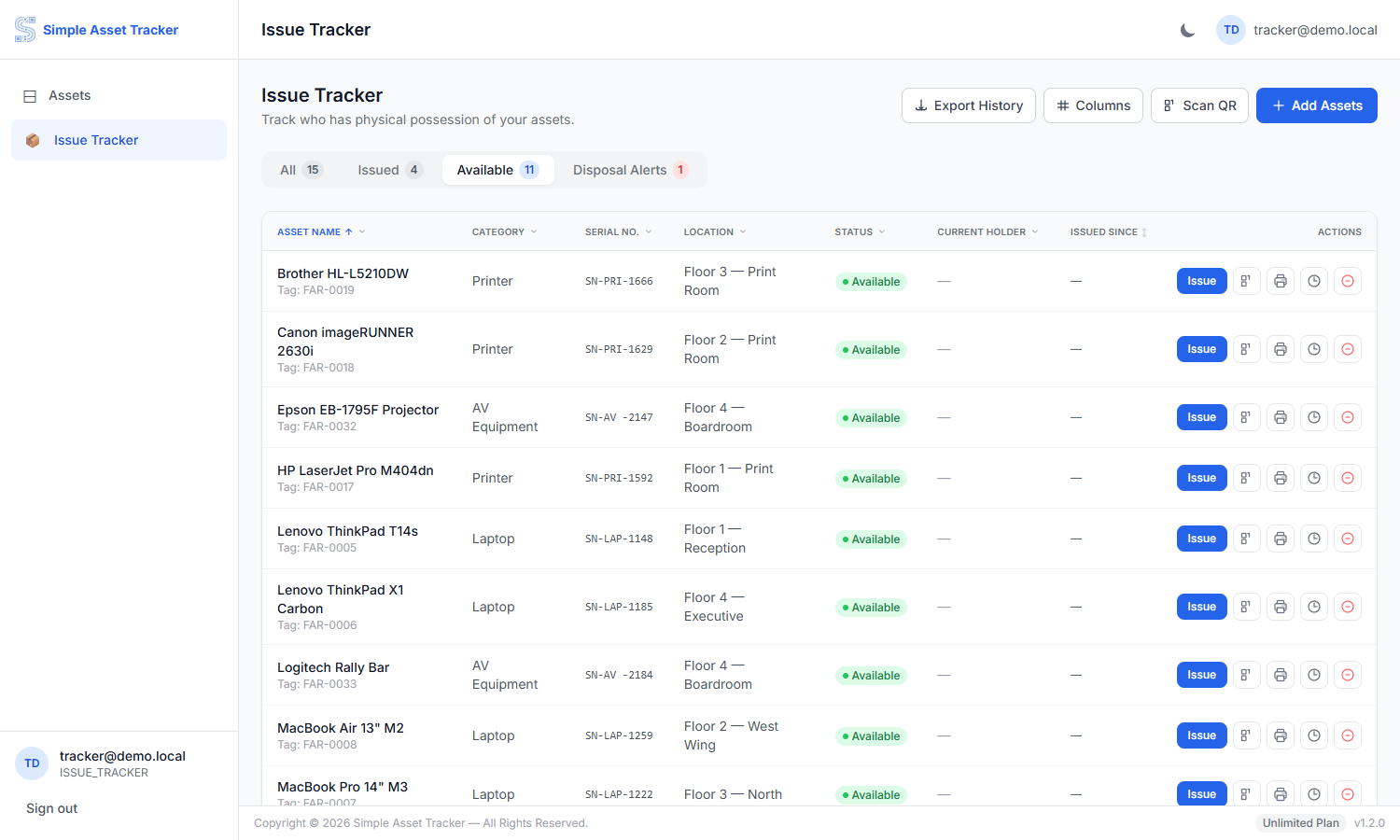
The Available tab is your shelf. Anything here is enrolled in the tracker and not currently out with anyone.
Appendix A — Words used in this guide
| Term | What it means |
|---|---|
| Asset | A single piece of equipment the organisation owns. |
| Issue | Handing an asset to a person and recording that they have it. |
| Recover | Taking the asset back and closing the record. |
| Enrol | Adding an asset to the Issue Tracker so it can be issued. |
| Disposal alert | A warning that finance has written off an asset somebody still holds. |
Appendix B — If something goes wrong
| Problem | What to do |
|---|---|
| The asset is already issued to someone | Recover it from the current holder first, then issue it again. |
| I cannot sign in | Check the username, and remember that repeated failures pause sign-in for a few minutes. Ask your administrator to reset your password if you are stuck. |